Tenzee on your phone’s home screen
Dashboard, tickets and scanner in one tap, like an app.
Tenzee has no app-store app and you don’t need one. Add Tenzee to your phone’s home screen: the icon opens Tenzee full screen like an app, without the browser bars. Instructions and a QR code are always at tenz.ee/app and under “Tenzee on your phone” in the account menu. You can send this link to your team and performers too.
iPhone and iPad: open tenzee.app in Safari, tap the share button (a square with an arrow pointing up) and then the down arrow (View More), choose “Add to Home Screen” and confirm with “Add”. On iOS 16.4 and later the same works in Chrome and Edge (the share button is in the address bar). If you opened the link in Instagram or Facebook, open the page in Safari first.
Android: in Chrome, tap the “Add to home screen” button on the dashboard, or open the browser menu ⋮ and choose “Add to Home screen” or “Install app”. Samsung Internet and Firefox have the same option in their menu.
On a computer the dashboard shows a QR code: scan it with your phone and carry on there. You can also install Tenzee on a computer. In Chrome and Edge, click the install icon at the right end of the address bar; in Safari on a Mac (macOS 14 or later), choose File → Add to Dock. The steps for each device are at tenz.ee/app.
A long press on the icon (Android) gives shortcuts: Dashboard, My tickets and Scan tickets. The scanner opens today’s event straight away, or lets you choose if there are several.
You can add a ticket to your home screen without a Tenzee account: open the ticket from the email link and follow “Keep your tickets handy”. The icon opens that ticket directly.
On iPhone, the home screen keeps your Tenzee sign-in separate from Safari, so sign in again the first time you open it. After that you stay signed in, as in the browser. Stripe verification and payments open in the same window and bring you back to Tenzee at the end.
In Tenzee opened from the home screen you can also turn on notifications: Settings → Notifications on this device. On iPhone, notifications only work in Tenzee opened from the home screen.
iPhone · Safari
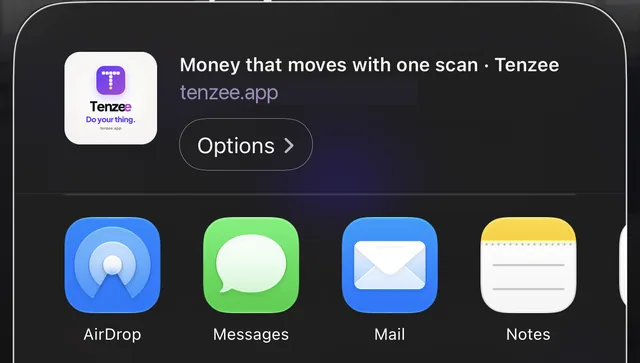
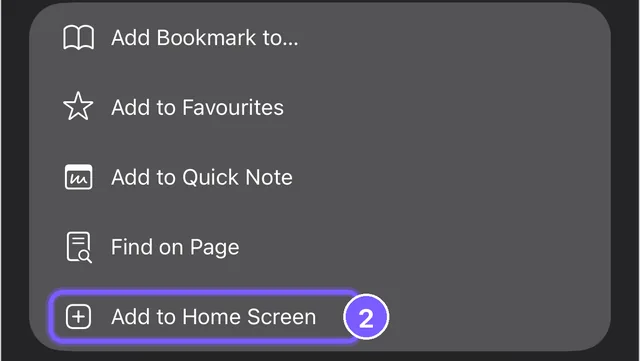
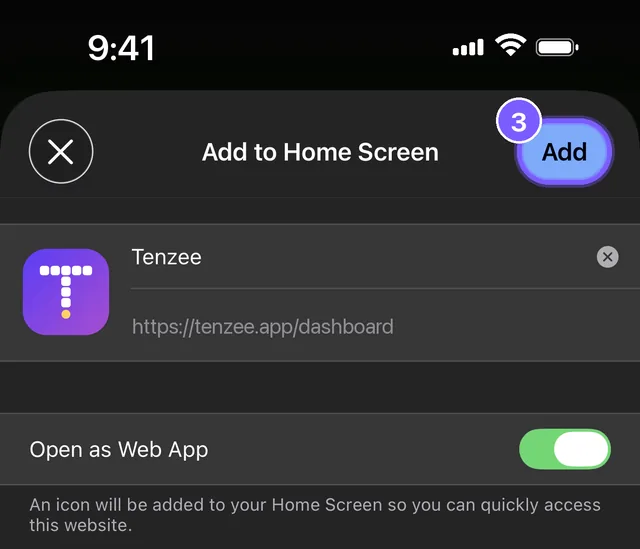
iPhone · Chrome
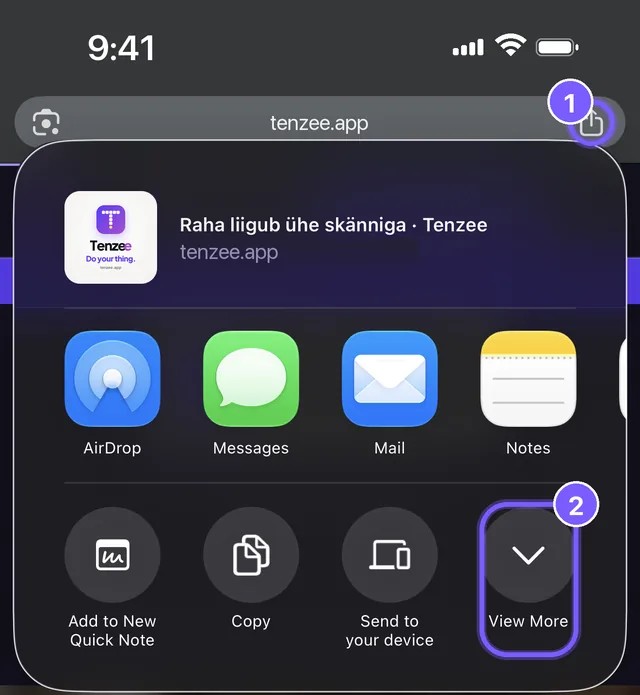
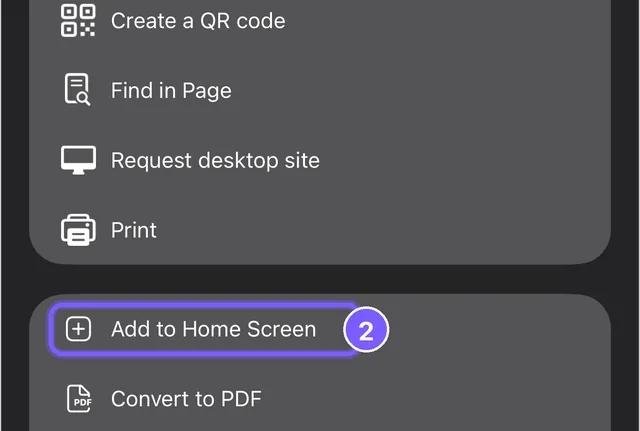
If a letter shows up instead of the icon, that's an iOS glitch. Tenzee still works. Pictures are from an iPhone set to English.
Related guides
- How does Tenzee announce changes to terms and prices? · Advance notice, confirming on your dashboard, and what keeps working meanwhile.
- How do I sign in? · No password needed.
- Notifications · See what happened on your account, delete notifications and choose what comes by email.
- What's new: new features in Tenzee · Where to see what changed in Tenzee and how to choose whether you also get an email.
- Service status: is Tenzee working? · The status page, incident alerts and what to do when something doesn’t work.
- Protect your account: what should I do when the dashboard suggests it? · A recovery phone or two-step verification, so you can always get your account back.
- Account security and two-step verification · Passkey, authenticator app, backup codes and sessions.
- Account recovery and recovery phone · What to do if you lose access to your email or your second step.
- How long does account recovery take? · Waiting times before a recovery takes effect.
- Why is two-step verification required? · When it’s required and what happens if it’s missing.
- Phone and contact details · Your account phone, contacts for buyers and who sees what.
- Closing your account and your data · How to close your account, download your data and what is kept.
- How do I export my data? · Buyers, members, sales and account data as a file.
- Languages and countries · Which languages and countries Tenzee works in.
- How do I contact Tenzee support? · The assistant, “Write to us”, phone and email.
- Support phone line and support code · How to call Tenzee support and what the support code is for.
- When will support reply, and in which languages? · Reply times, languages and how to get an answer sooner.
- Tenzee assistant · What the assistant knows, how to suggest something or report a bug, and how to reach a person.
- Beta features: try new things first · How to join a beta, what it means and how to give feedback.
- How support confirms it’s you · A confirmation code by email, and what support never asks for.
- Reporting a suspicious page · How to report a fraudulent page.